
Photo by Leon Seibert on Unsplash
The Problem
Updating macOS is usually a smooth process, but the recent update to macOS Tahoe left my machine in a weird state. I was connected to Wi-Fi with full signal strength, yet I had zero internet connectivity. Browsers timed out, and ping requests went nowhere.
I tried the standard troubleshooting steps: restarting the router, forgetting the network, and renewing the DHCP lease. None of them worked.
The Developer Variable
As developers, our machines aren’t standard. We often configure network interception tools to debug API calls or mobile traffic. If you have apps like Charles Proxy, Proxyman, or Fiddler installed, they often modify system proxy settings to capture traffic.
It turns out the OS update didn’t play nice with these lingering configurations, leaving the system looking for a proxy that wasn’t running.
The Fix
If you are stuck in the “Connected but No Internet” limbo, here is what worked for me.
- Open System Settings and go to Wi-Fi.
- Find your connected network (the one that isn’t working) and click Details.
- Select the Proxies tab on the left.
- Look for Web proxy (HTTP) and Secure Web proxy (HTTPS).
- Turn both of them OFF.
- Click OK to save.
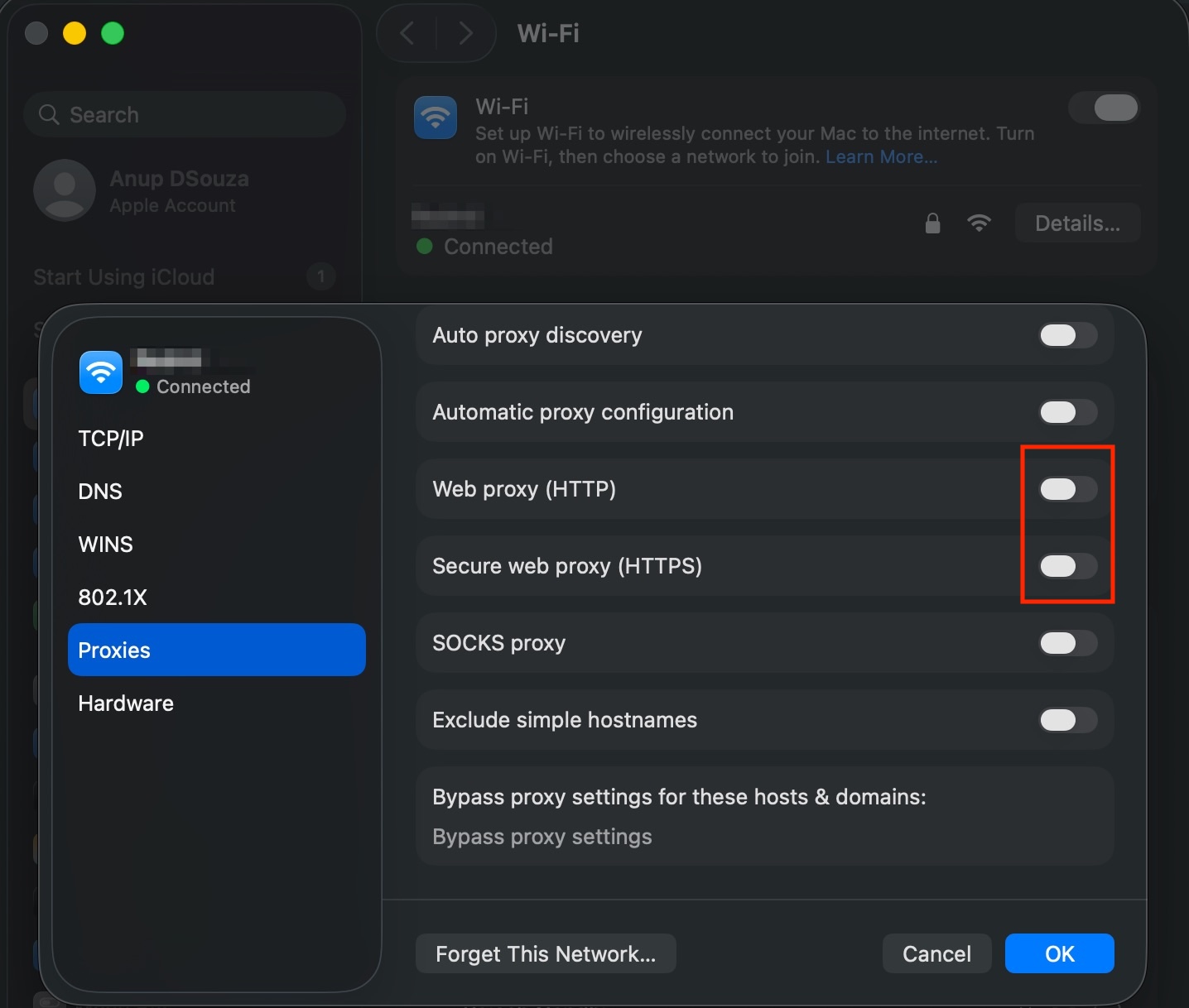
Your internet connection should return immediately, no restart required. Surprisingly, re-configuring Charles proxy posed no issues thereafter.
Consider subscribing to my YouTube channel & follow me on X(Twitter). Leave a comment if this helped you out.
